

Last updated: October 2026 · 8 min read
“Gemini AI photo” was one of India’s biggest search trends, thanks to viral 3D figurine, retro saree and vintage portrait edits made with Google’s image model nicknamed Nano Banana. The best part: you don’t need Photoshop or any design skills. You simply upload a photo to the Gemini app, describe what you want, and refine it in plain language. This guide shows you exactly how to do it, with ready-to-use prompts and important safety tips.
What is Nano Banana?
Nano Banana is the popular name for Google’s image generation and editing model inside Gemini (the latest version is Nano Banana 2). It’s good at keeping a person’s face consistent across edits, blending multiple photos, changing backgrounds and styles, and following step-by-step instructions in a conversation.
What you need
- A Google account
- The Gemini app (Android, iPhone) or gemini.google.com on a computer
- A clear, well-lit photo (front-facing works best)
Image creation is available on the free plan. Daily limits and high-resolution downloads depend on your plan (free, Google AI Pro or AI Ultra).
How to edit a photo with Gemini: step-by-step
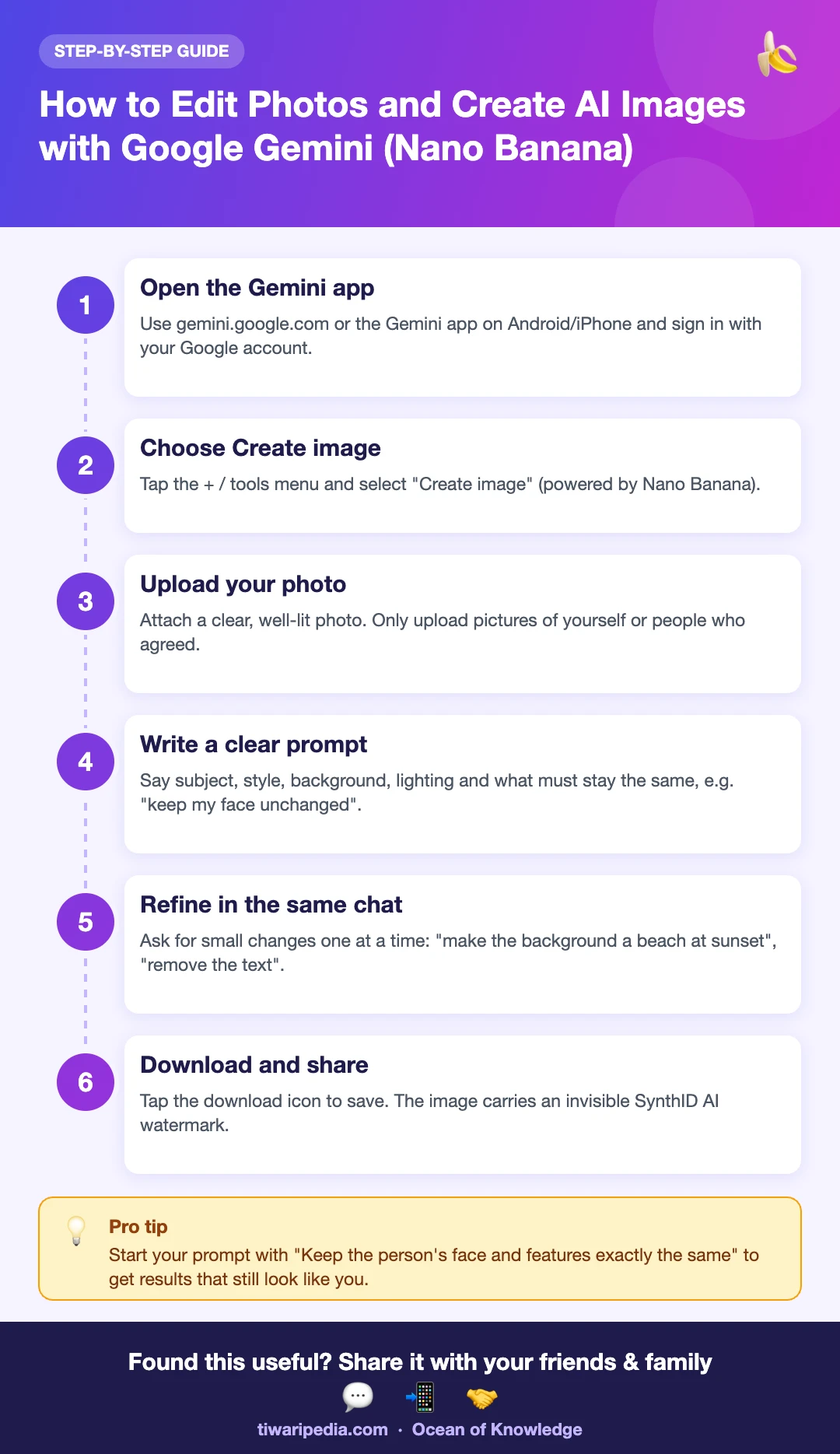
Step 1: Open Gemini and sign in
Open the Gemini app or visit gemini.google.com and sign in with your Google account.
Step 2: Select “Create image”
Tap the + (or tools) button next to the prompt box and choose Create image. You can also pick a ready-made template from the gallery to start.
Step 3: Upload your photo
Tap + again and attach a photo from your gallery or camera. For multi-photo edits (for example, you and a friend in one picture), attach both images.
Step 4: Write a clear prompt
Describe what you want in one or two sentences. A good prompt names one subject, one style, the background, the lighting and what must not change. Then send it.
Step 5: Refine in the same chat
Gemini shows the result (sometimes several versions). If something is off, reply in the same chat with a small change instead of starting over, because Gemini remembers the context. Ask for one change at a time.
Step 6: Download and share
Open the image you like and tap the download icon. Every image carries Google’s invisible SynthID watermark that identifies it as AI-generated, and some plans also show a small visible Gemini mark.
Ready-to-use prompts
| Style | Prompt to copy |
|---|---|
| Professional headshot | Keep my face exactly the same. Turn this into a professional LinkedIn headshot: navy blazer, plain light-grey studio background, soft front lighting, sharp focus. |
| Retro portrait | Keep my face unchanged. Recreate this as a 1990s film-style portrait with warm grainy tones, a chiffon saree flowing in the wind and a soft golden-hour background. |
| 3D figurine | Create a realistic collectible 3D figurine of the person in this photo, standing on a round clear base on a computer desk, with the figurine’s box beside it. |
| Background change | Keep everything about the person the same. Replace only the background with a beach at sunset, and match the lighting on the person. |
| Old photo restore | Restore this old photo: remove scratches and stains, fix fading, add natural colours. Do not change facial features. |
| Festival greeting | Add warm Diwali diyas and soft fairy lights around the person, keep the face unchanged, and leave empty space at the top for text. |
Tips for better results
- Always protect the face: start with “keep the face and features exactly the same”.
- Be specific: “soft window light from the left” works better than “nice lighting”.
- One change at a time: small follow-ups beat one giant prompt.
- Use a good source photo: sharp, well-lit and not heavily filtered.
- Ask for text separately: AI text in images can have spelling mistakes; add greetings later in an editor if needed.
Use AI photo tools safely and responsibly
- Don’t upload other people’s photos without their permission, and never create images to mislead, harass or impersonate anyone. Fake images of real people can be illegal.
- Think twice about privacy: avoid uploading photos of children, ID cards or documents.
- Beware of fake “Nano Banana” apps and websites asking for payment or app installs. Use only the official Gemini app.
- Label AI images when sharing on social media, especially if they look real.
Frequently asked questions
Is Gemini image editing free?
Yes, Create image works on the free Gemini plan with daily limits. Paid plans offer higher limits and higher resolution.
Why doesn’t the edited photo look like me?
Use a clearer photo, add “keep my face unchanged” to the prompt, and refine in the same chat instead of regenerating from scratch.
Can I use these images commercially?
Check Google’s current Gemini terms before commercial use, and make sure you have rights to any photo you upload.
How can people tell an image is AI-made?
Gemini adds an invisible SynthID watermark that Google’s tools can detect. Labelling AI images yourself is still good practice.
Keep exploring
- Prompt engineering for beginners
- What is generative AI?
- Deepfakes explained: how to spot AI fakes
- Using AI responsibly: 10 simple rules
- More How To guides on Tiwaripedia
Features and limits are as available in the Gemini app at the time of writing and may vary by plan and region. Spotted something that needs updating? Let us know.
Keep reading on Tiwaripedia
- 12 Smart (and Honest) Ways Students Can Use AI Tools for Study in 2026
- Machine Learning vs Deep Learning vs Generative AI: Differences Explained Simply
- How to Book a Tatkal Ticket on IRCTC: 2026 Rules, Timings, Aadhaar OTP and Tips for Confirmed Seats
- How to Link PAN with Aadhaar After the Deadline: Pay ₹1,000 Fee, Link and Check Status (2026)
- How to Update Address in Aadhaar Online: Step-by-Step Guide, Documents and Head of Family Method (2026)
- How to Block a Lost or Stolen Phone in India Using Sanchar Saathi (CEIR): Step-by-Step
More guides: All Artificial Intelligence articles